Tools
Tools allow you to embed external web applications inside DataCentral using iframes. Your users can access these tools directly from the sidebar, and DataCentral handles authentication context, session data, and optional token forwarding.
Navigate to Administration > Tools to manage your tools. DataCentral 3.0.0 supports tools in the host environment as well as in individual tenants.
The Tools list includes the following information and navigation improvements:
- Roles: Shows the roles assigned to each tool. Open the advanced filters to display only tools assigned to a selected role.
- Links: Shows how many links are associated with each tool. Select the link count to open the Links page filtered to that tool.
- Created and Last modified: Show when the tool was added and most recently updated. Select either column heading to sort the list.
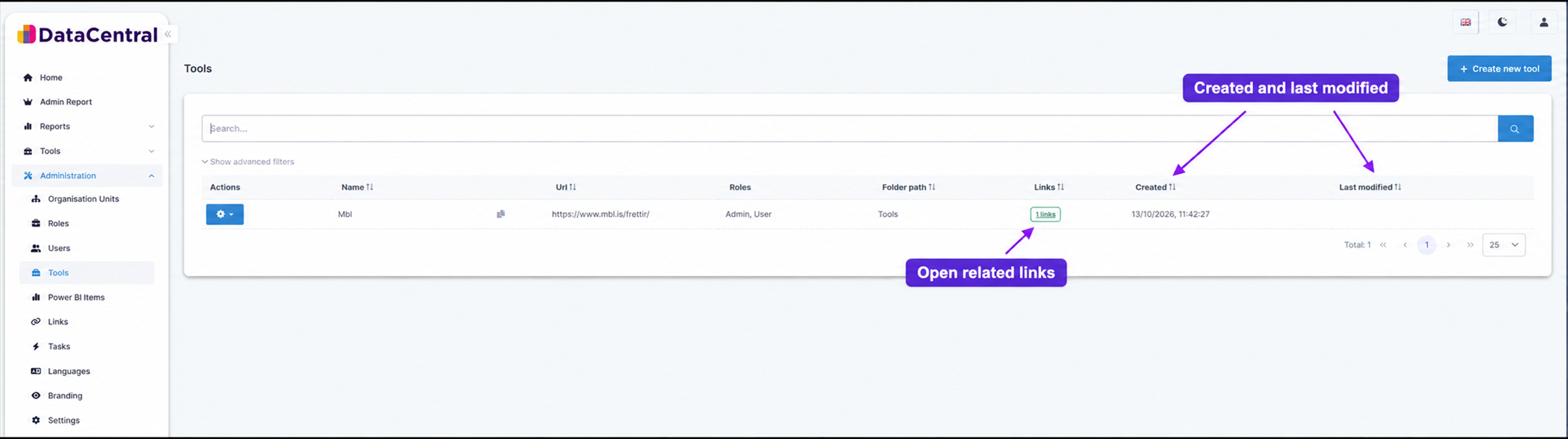
Select the link count to open the Links page for that tool, or use the date columns to review recent changes.
Creating a Tool
Click Create New Tool and fill in the following fields:
| Field | Description |
|---|---|
| Name | Display name shown in the sidebar. |
| URL | The full URL of the external web application to embed. |
| Secret | Optional shared secret used to sign the session data (HMAC-SHA256). Click the refresh icon to auto-generate one. |
| Folder Path | Sidebar folder where the tool will appear. |
| Roles | Select which roles can access the tool. |
Session Data
When a user navigates to a tool, DataCentral appends session context to the tool URL as query parameters:
dcdata— Base64-encoded JSON containing user ID, username, display name, tenant info, and assigned roles.dcsig— HMAC-SHA256 signature of the session data, signed with the tool's secret.
The embedded tool can verify the signature using the shared secret to ensure the session data hasn't been tampered with.
Token Forwarding
Token forwarding requires the Token Forwarding feature to be enabled for the tenant's edition.
Token forwarding allows DataCentral to pass authentication tokens to the embedded tool via the browser's postMessage API. This enables the embedded tool to call Microsoft Graph, Power BI, or DataCentral APIs on behalf of the user or tenant.
How It Works
- DataCentral loads the tool in an iframe.
- The tool sends an
AppReadymessage to the parent window when it is ready to receive tokens. - DataCentral replies with the configured tokens via
postMessage.
See the Tool Integration Guide for implementation details.
Include Access Token
When enabled, the DataCentral JWT (bearer token) for the logged-in user is forwarded to the tool. This allows the tool to call DataCentral's own API endpoints on behalf of the user.
Include Graph Token
When enabled, a Microsoft Graph API token is acquired and forwarded to the tool. The token is obtained via the selected authentication app.
- Authentication app selection — Choose which Entra ID app registration to use (Authentication 1, 2, or 3). Each corresponds to a different set of consented permissions on your Entra ID app registration.
- If the tenant inherits host settings, the host's configured authentication app is used automatically and no selection is needed.
- The Graph token (and PBI Pro token, if applicable) is only acquired for users who signed in via Azure AD.
- If the selected authentication app supports Power BI permissions (Authentication 2 or 3), a Power BI Pro token is also included alongside the Graph token.
Include PBI Token
When enabled, a Power BI API access token is generated server-side using a service principal and forwarded to the tool. This does not require the user to have a Power BI Pro license.
- Service principal selection — Choose which Power BI service principal to use (SP 1, 2, or 3). Each is configured separately in your tenant's Azure settings.
- If the tenant inherits host settings, the host's service principal is used automatically and no selection is needed.
- The PBI token works for both authenticated and public (link-based) tool embeds.
Disabling a Tool
Toggle the Disable Tool switch to prevent users from accessing the tool. Disabled tools remain in the list but are not shown in the sidebar and cannot be embedded.
Sharing Tools via Links
Tools can be shared using links created in Administration > Links. There are two modes:
- Authentication required — The user must log in before viewing the tool. Session data reflects the user's identity and roles. All token forwarding options are available.
- Public link (key-based) — Anyone with the link can view the tool. Session data reflects the link's assigned roles. Only the PBI service principal token is available (no Graph or access tokens, since there is no authenticated user).