Adding Power BI Reports
Once your host environment or Tenant is connected to Power BI workspaces via a Service Principal, you can begin linking reports, dashboards, and apps for users to view. DataCentral 3.0.0 supports Power BI content management at both the host and tenant levels.
1. Prerequisites
Before adding a report, ensure:
- The Power BI Service Principal has been added as a Member or Admin to the target workspace in the Power BI Service.
- The workspace is visible in DataCentral under Administration > Power BI Items > Manage Workspaces.
2. Importing an Item
To add a Power BI item to your Tenant:
- Navigate to Administration > Power BI Items.
- Click the Add New Item button.
- Select the Workspace and then the specific Item you want to import.
The form provides a number of optional fields and settings to configure the item before saving:
- Name: Defaults to the item's name in Power BI. You can override this with a custom display name shown to your users.
- Description: A short description displayed alongside the item in the interface.
- Folder Path: Place the item into a folder to organise your navigation menu.
- Icon: Assign a custom icon to the item.
- Feature Toggles: A set of checkboxes to enable specific behaviours for the item.
- Roles: Assign one or more Report Roles to control which users can see the item. A user without a matching role will not see the item in their navigation.
- Dataset RLS roles: For datasets protected by Row-Level Security, DataCentral reads and displays the roles defined in the dataset. It warns you when none of the assigned DataCentral application roles match the dataset roles.
- Additional Data: Add references to related datasets or reports that DataCentral needs in order to generate the correct embed token. See Configuring Additional Data Dependencies for details.
- Click Save.
Once saved, the item is available in DataCentral and visible to any user or Organizational Unit assigned a matching Role.
Using the Power BI Items list
The Power BI Items administration list includes the following information and navigation improvements:
- Roles: Shows the roles assigned to each item. Open the advanced filters to display only items assigned to a selected role.
- Links: Shows how many links are associated with each item. Select the link count to open the Links page filtered to that item.
- Created and Last modified: Show when the item was added and most recently updated in DataCentral. Select either column heading to sort the list.
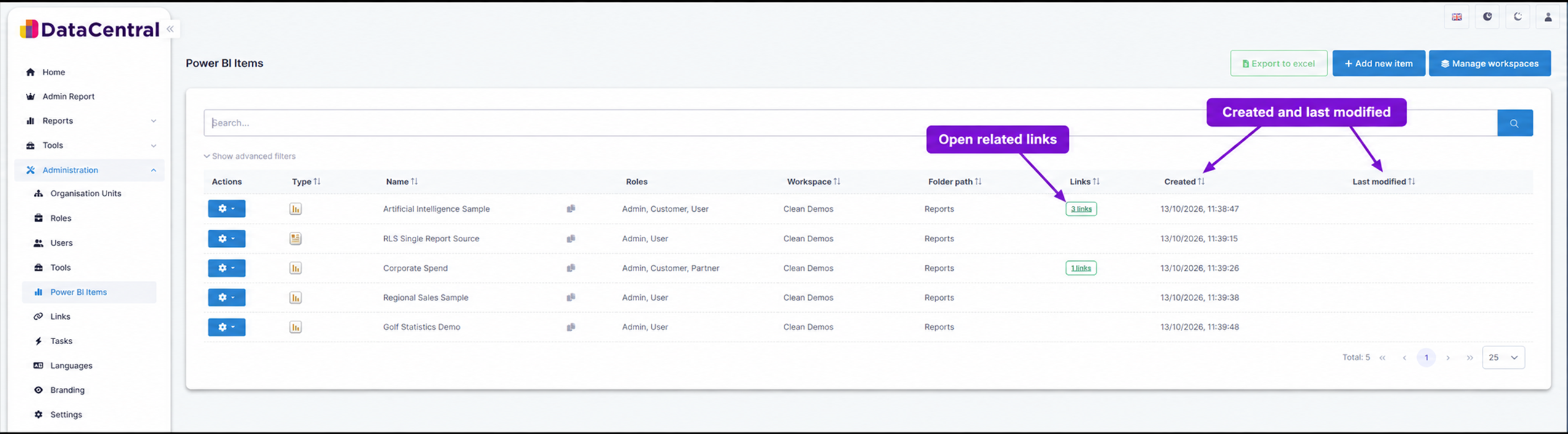
Select a link count to open the associated links. The date columns can be used to sort items by when they were created or last updated.
The report details view also shows the number of associated links and tasks and identifies workspaces that use dedicated capacity.
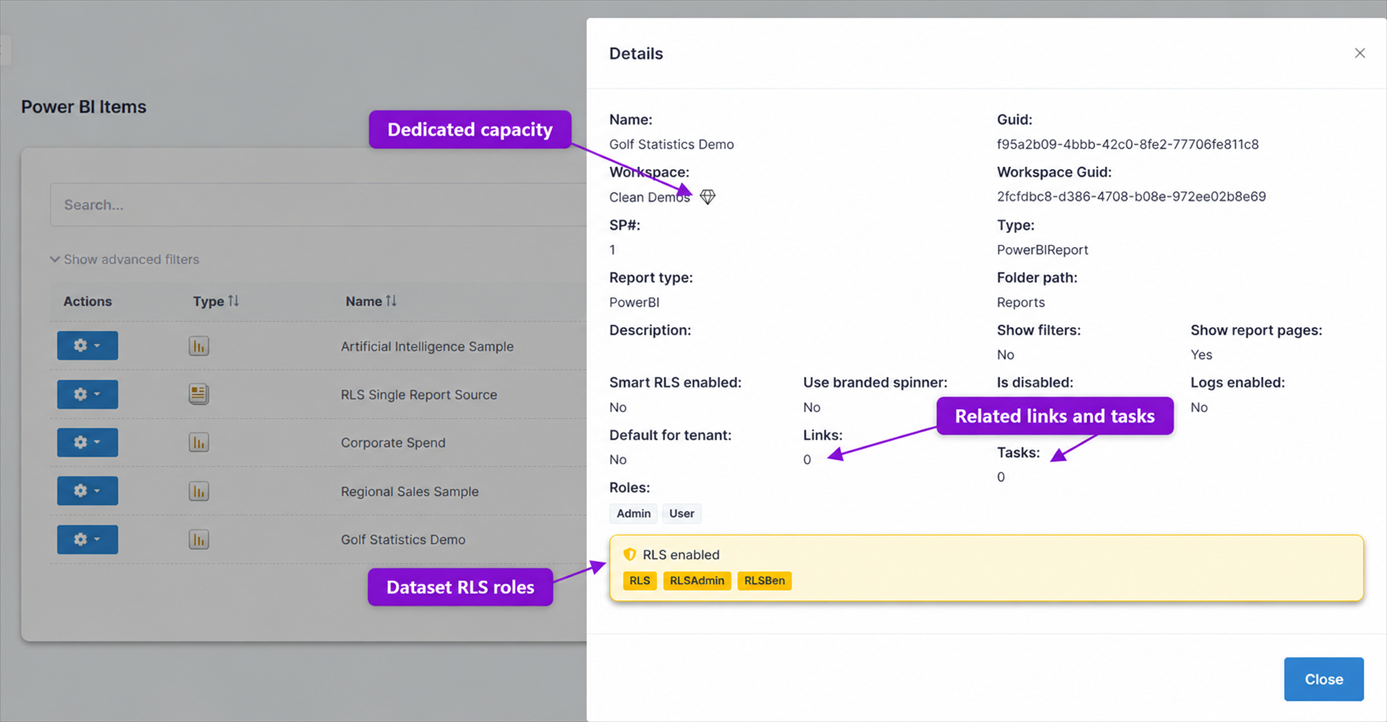
The details view brings workspace capacity, related-item totals, and dataset RLS roles together in one place.
3. Configuring Additional Data Dependencies
Some complex Power BI reports have dependencies on other items in the workspace. DataCentral needs to know about these dependencies to generate the correct embed tokens.
- Paginated Visuals: If your report contains a paginated report visual, you must add the paginated report's GUID as "Additional Data" (Type: Report).
- Shared Datasets: If your report connects to a dataset in a different workspace, you must add that dataset's GUID as "Additional Data" (Type: Dataset).
- Row-Level Security (RLS): If the underlying dataset uses RLS, you must add the dataset's GUID as "Additional Data" and check the Has RLS box. This tells DataCentral to pass the user's RLS roles to Power BI when rendering the report.
To configure dependencies:
- Edit the item.
- Go to the Additional Data Sources section.
- Enter the required GUIDs and check the appropriate boxes.
- Click Save.
4. Pinning a Report to Home
The host and tenants use the same Home dashboard experience in DataCentral 3.0.0. Pin a report to make it the Home start page.
Open the report and select Pin Report in the DataCentral toolbar. The pinned report will appear on Home when you sign in.
5. Troubleshooting RLS Role Mismatches
If DataCentral reports an RLS mismatch, compare the roles assigned to the Power BI item with the roles shown as available on its dataset. At least one assigned role must match the corresponding Power BI RLS role exactly.
If an RLS-protected report takes longer than expected to load, DataCentral displays the roles included in the embed request and the roles defined on the dataset. Use this comparison to identify a missing or incorrectly named role. See Row-Level Security for more guidance.