Links
DataCentral allows you to generate shareable links for Power BI items and tools. These links can be used for public embedding, scheduled exports, DAX queries, and more.
Navigate to Administration > Links and click Create New Link to get started.
The Links list groups links by their associated Power BI item or tool. Each group shows its number of links, and the item name is a navigation link:
- Select a Power BI item name to open the Power BI Items list filtered to that item.
- Select a tool name to open the Tools list filtered to that tool.
- Expand a group to view its links, including their Created, Expiration, and Last modified dates.
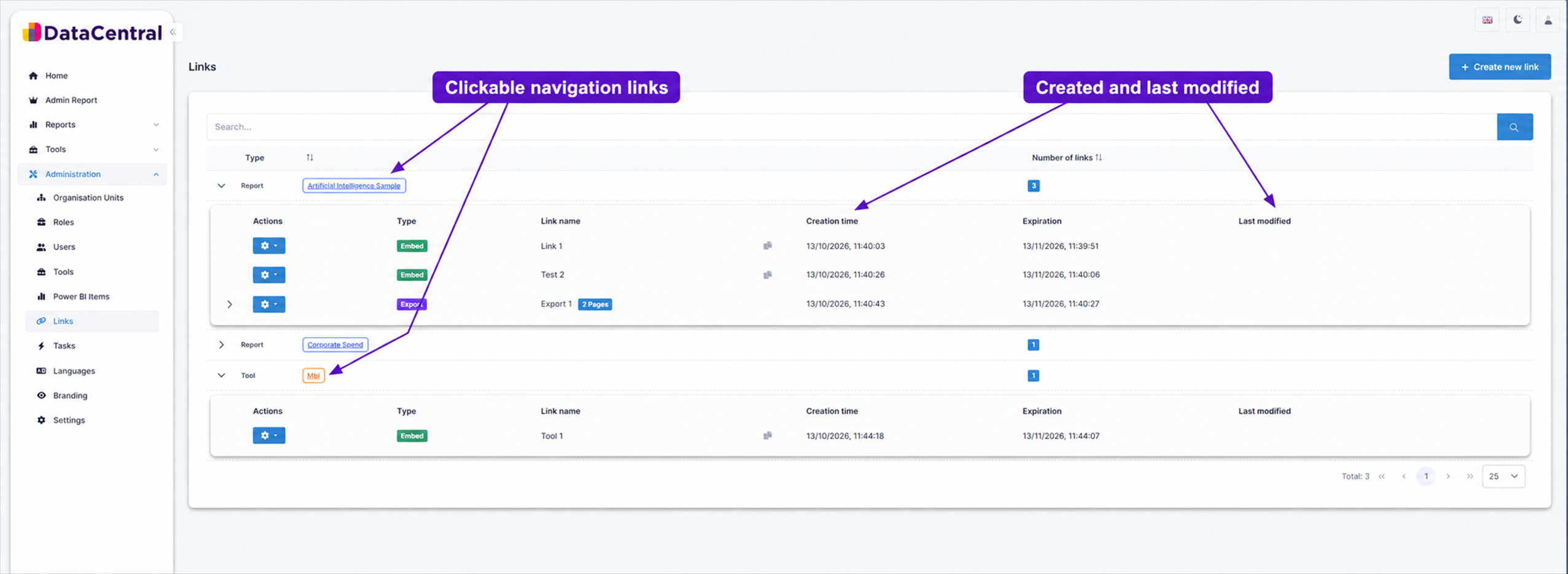
Select a report or tool name to return to its administration list. Expand an item to review the activity dates for each link.
Item Type
When creating a link, first select the Item Type:
- Power BI Item — generate a link for a report, dashboard, or app imported into DataCentral.
- Tool — generate an embed link for a DataCentral tool.
Power BI Item Links
After selecting Power BI Item, choose the item from the dropdown list and give the link a name. Then select the link type.
Embed Link
Generates a URL that renders the report in an embedded view.
- Access: Choose between:
- Everyone with this link can view it — the link is public. A key value is required and must be included in the URL.
- Authentication required — the user must log in before viewing the report. No key value is needed; the user's own roles are applied.
- User ID: Optionally enter a user ID to override the
UserPrincipalName()passed to Power BI. - Expiration: Set an expiration date, or toggle Never Expires.
- Description: Optional.
- Filter: Optionally apply a filter string to the report.
- Slideshow: Toggle Enable Slideshow to turn the embed into a rotating slideshow. When enabled, select which pages to include and set the interval in seconds between transitions.
Export Link
Generates a URL that triggers a report export.
- Key Value: Always required.
- Expiration: Set an expiration date, or toggle Never Expires.
- Description: Optional.
- Roles: Select RLS roles to apply when generating the export.
- Pages: Select which pages of the report should be included in the export.
DAX Query Link
Generates a URL that runs a DAX query against the report's dataset and returns the result.
- Key Value: Required.
- Expiration: Set an expiration date, or toggle Never Expires.
- Description: Optional.
- DAX Query: Enter the DAX query to run against the dataset.
- Roles: Select RLS roles to apply when executing the query.
- Caching: Optionally toggle Enable Caching and set a cache duration to avoid re-running the query on every request.
Tool Links
Tool links only support the Embed type. The configuration is the same as a Power BI embed link:
- Public or authentication-required access toggle
- Key value (required for public links)
- Expiration or never expires
- Roles