Roles and Permissions
DataCentral uses roles to control what users can do in the platform, which content they can access, and what data they are allowed to see inside reports.
Managing Roles
To create or edit a Role:
- Navigate to Administration > Roles.
- Click Add Role (or click the edit icon next to an existing role).
- Enter a Name and Description.
- Configure the role based on how you want to use it.
- If the role is used for Row-Level Security, enter the exact role name as defined in Power BI.
- Click Save.
You can then assign this role to users individually, or map it to an Organizational Unit so that all users in that OU inherit the role automatically.
The Roles administration list shows sortable counts for related Users, Power BI items, and Tools, together with Created and Last modified dates. Select a count to open the corresponding administration page filtered to that role.
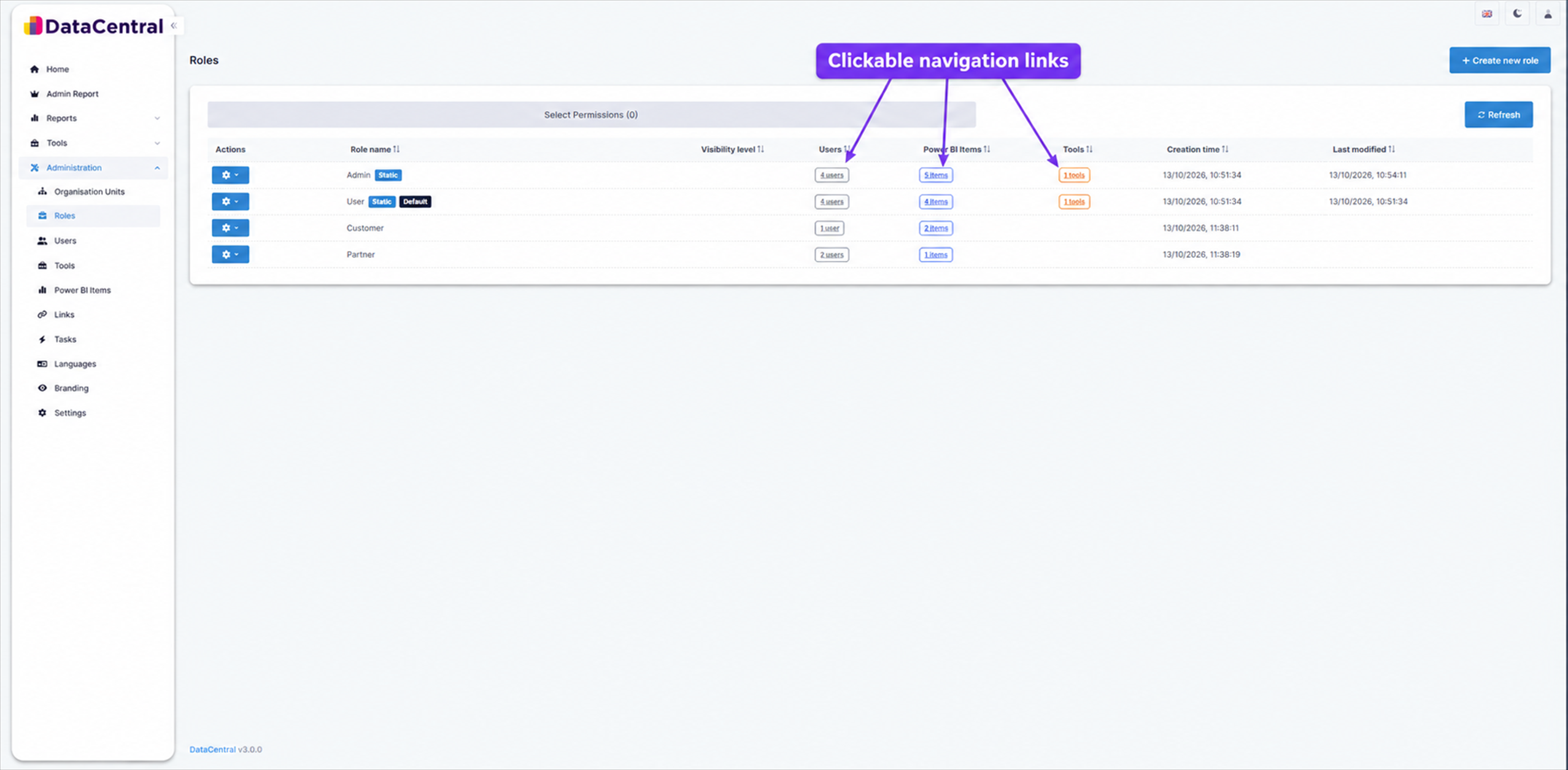
Select a related-item count to open the corresponding administration list with the role filter applied.
1. Default Roles
A new Tenant starts with two static roles:
- Admin: Full administrative access to the Tenant.
- User: Standard end-user access with no administrative permissions by default.
These roles are available immediately in every new Tenant.
2. Custom Roles
Tenant Administrators can create additional roles to match their own access model. These roles are not fixed by DataCentral — none are pre-created in a fresh Tenant. The categories below are usage patterns, and the named examples are illustrative of how customers typically structure their setup.
System / RBAC Roles
System roles control what administrative actions a user can perform within DataCentral. A typical setup might include roles such as:
- Tenant Administrator: Full control over the Tenant — can manage users, OUs, roles, branding, authentication settings, and Power BI items.
- User Manager: Can add, edit, and delete users, and assign them to existing OUs and Roles. Cannot modify settings or add new Power BI items.
- Content Manager: Can add, edit, and remove Power BI reports, dashboards, and apps. Cannot manage users or tenant settings.
- Viewer: No administrative privileges — can only view the reports they have been granted access to.
These are examples. You define the names, folder and permissions yourself.
Report Roles
Report roles control the visibility of items in the DataCentral interface. For example, you might create roles named Sales Reports or Executive Dashboards and assign them to the relevant Power BI items. A user only sees items that match one of their assigned roles.
RLS Roles
RLS roles map users to Row-Level Security roles defined in your Power BI datasets. The role name in DataCentral must exactly match the RLS role name in Power BI (for example, Region_EMEA). See Section 4 for details.
3. Report Access Roles
Report roles control the visibility of items such as Reports, Dashboards, and Apps within the DataCentral user interface.
- When you link a Power BI report into DataCentral, you can assign one or more roles to it (for example,
Sales ReportsorExecutive Dashboards). - When a user is assigned one of those roles, the corresponding item becomes visible to them.
- If a user does not have the required role, the item is hidden from their navigation.
4. Row-Level Security (RLS) Roles
RLS roles map directly to the Row-Level Security roles defined in your underlying Power BI dataset. They control the data a user sees inside a report, not just which reports are visible.
- Role Name Matching: The name you give the role in DataCentral must exactly match the RLS role defined in Power BI Desktop or the dataset (for example,
Region_EMEA). - Enforcement: When a user with a mapped RLS role opens a report, DataCentral passes that role name to Power BI. Power BI then filters the data before rendering the visuals — so a user mapped to
Region_EMEAwill only see EMEA data, even if another user viewing the same report sees global data. - Multiple roles: A user can be assigned more than one RLS role. Each role is passed to Power BI independently.
For advanced data filtering scenarios, DataCentral also supports Dynamic RLS and Smart RLS.
When configuring an RLS-protected report, DataCentral displays the roles found on the Power BI dataset and warns you if none of the assigned application roles match. See Validating RLS Role Assignments.