Row-Level Security (RLS)
Row-Level Security (RLS) allows you to restrict data access for given users at the database row level. DataCentral extends Power BI's native RLS capabilities, making it easier to manage complex security rules across thousands of users and tenants.
When a user views a report in DataCentral, the platform passes their assigned RLS roles to Power BI. Power BI then filters the data before rendering the visual, ensuring the user only sees the data they are authorized to see.
1. Standard RLS (Roles)
This is the most common method of implementing RLS. It involves creating static roles in Power BI Desktop and mapping them to users in DataCentral.
Step 1: Define Roles in Power BI
- In Power BI Desktop, go to Modeling > Manage roles.
- Create a new role (e.g.,
Region_EMEA). - Add a DAX filter to the appropriate table (e.g.,
[Region] = "EMEA"). - Publish the dataset to the Power BI Service.
Step 2: Create Roles in DataCentral
- In DataCentral, go to Administration > Roles.
- Click Add Role.
- Name the role (e.g., "EMEA Sales Data").
- Set the Role Type to RLS.
- Enter the exact role defined in Power BI (
Region_EMEA). - Click Save.
Step 3: Assign the Role
Assign the new "EMEA Sales Data" role to the appropriate users or Organizational Units (OUs). When those users view a report connected to that dataset, DataCentral will pass the Region_EMEA role to Power BI.
2. Dynamic RLS
Dynamic RLS uses the logged-in user's identity to filter data dynamically, rather than relying on static role names. This is often achieved using the UserPrincipalName() function in DAX.
Step 1: Define a Dynamic Role in Power BI
- In Power BI Desktop, go to Modeling > Manage roles.
- Create a single role (e.g.,
DynamicRLS). - Add a DAX filter that uses the user's identity. For example, if you have a "Security" table mapping emails to regions:
[Region] = CALCULATE(MAX(Security[Region]), Security[Email] = UserPrincipalName()) - Publish the dataset.
Step 2: Configure DataCentral
- In DataCentral, create an RLS role with the role
DynamicRLS. - Assign this role to your users.
- When a user logs in (e.g.,
john@partner.com), DataCentral passes their email address as theUserPrincipalNameto Power BI, along with theDynamicRLSrole. Power BI filters the data accordingly.
Note: This works seamlessly for Entra ID users. For User Pass and Mobile ID users, DataCentral passes their unique DataCentral username as the UPN.
3. Smart RLS (DataCentral Exclusive)
Smart RLS is an extension of Dynamic RLS. When enabled on a Power BI item, DataCentral appends the logged-in user's DataCentral roles as an array to their username before passing it to Power BI as the UserPrincipalName.
How Smart RLS Works
With standard Dynamic RLS, UserPrincipalName() in DAX returns just the username:
test@example.com
With Smart RLS enabled, UserPrincipalName() returns the username with the user's roles appended:
test@example.com,[Admin,Sales,Europe]
This allows your DAX expressions to parse and query the roles array dynamically, without needing to define a separate Power BI role for each access level.
Enabling Smart RLS
Enable the Smart RLS toggle on the Power BI item in Administration > Power BI Items. No changes are required in Power BI Desktop beyond writing DAX that reads and parses the UserPrincipalName() value to extract the roles array.
4. Validating RLS Role Assignments
When you create, edit, or view the details of a report, DataCentral reads and displays the RLS roles defined on its Power BI dataset.
- Compare the dataset roles with the DataCentral application roles assigned to the report.
- DataCentral displays a warning when none of the assigned roles match the dataset's RLS roles.
- Role names must match exactly, including spacing and capitalization used in Power BI.
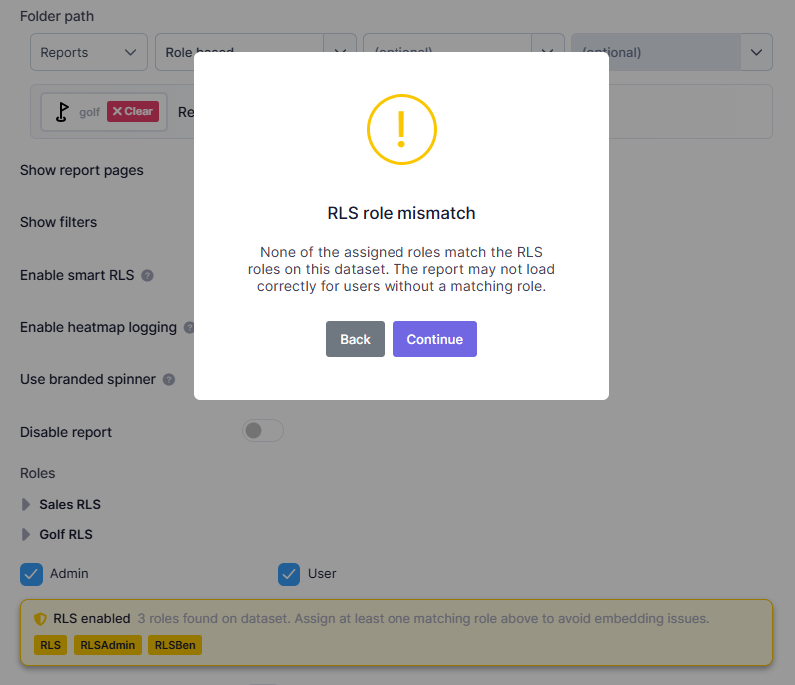
DataCentral warns administrators when the roles assigned to a report do not match any RLS roles found on its dataset.
If an RLS-protected report does not load within the expected time, DataCentral shows the roles sent in the embed request alongside the roles defined on the dataset. A role present only on one side usually indicates that the assignment is missing or named incorrectly.
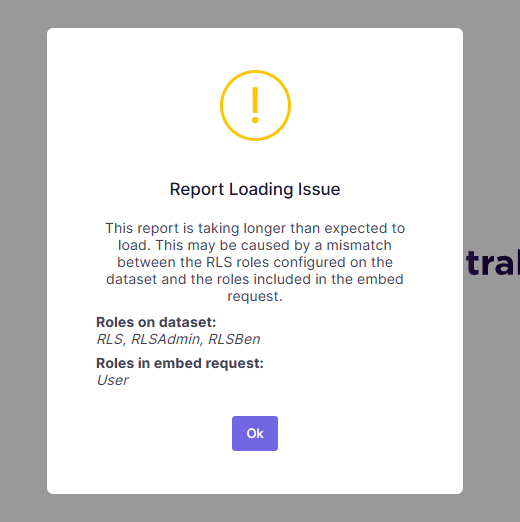
The loading warning shows both sets of roles so administrators can identify the mismatch.
After correcting the role assignment, save the report configuration and reopen the report as a user who has the affected role.